Stop Public Wi-Fi Risks: Real Protection vs Hype
Most public Wi-Fi security fails because the network itself is open, not because your device lacks a firewall or antivirus software.
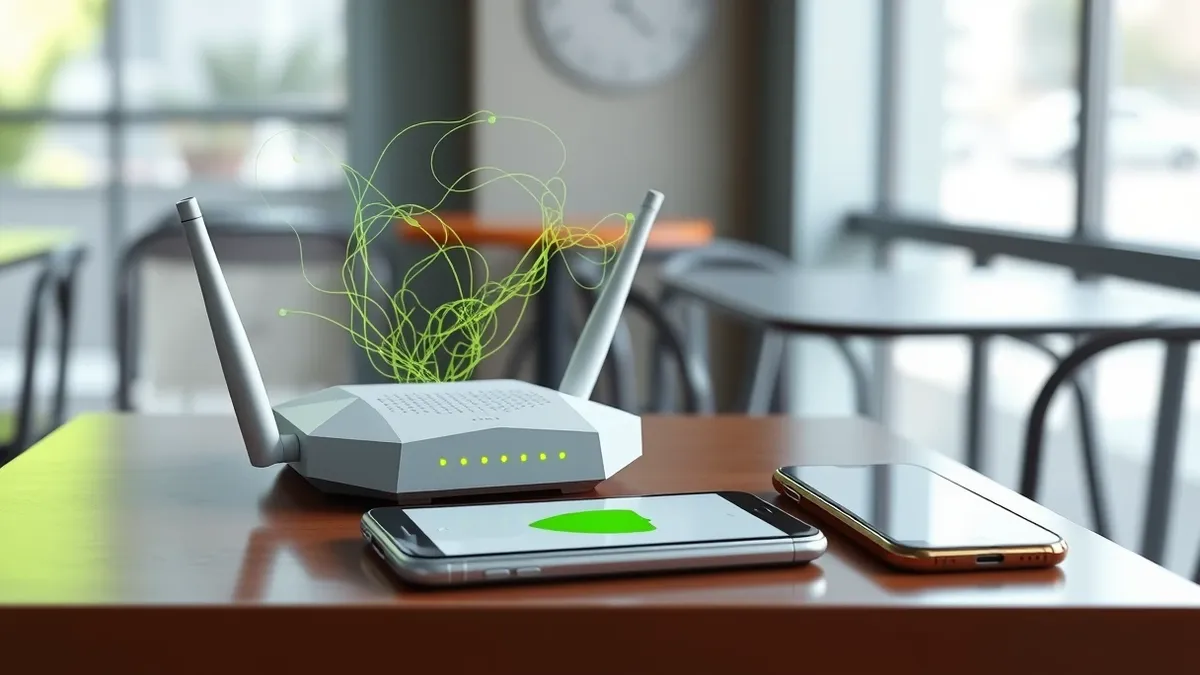
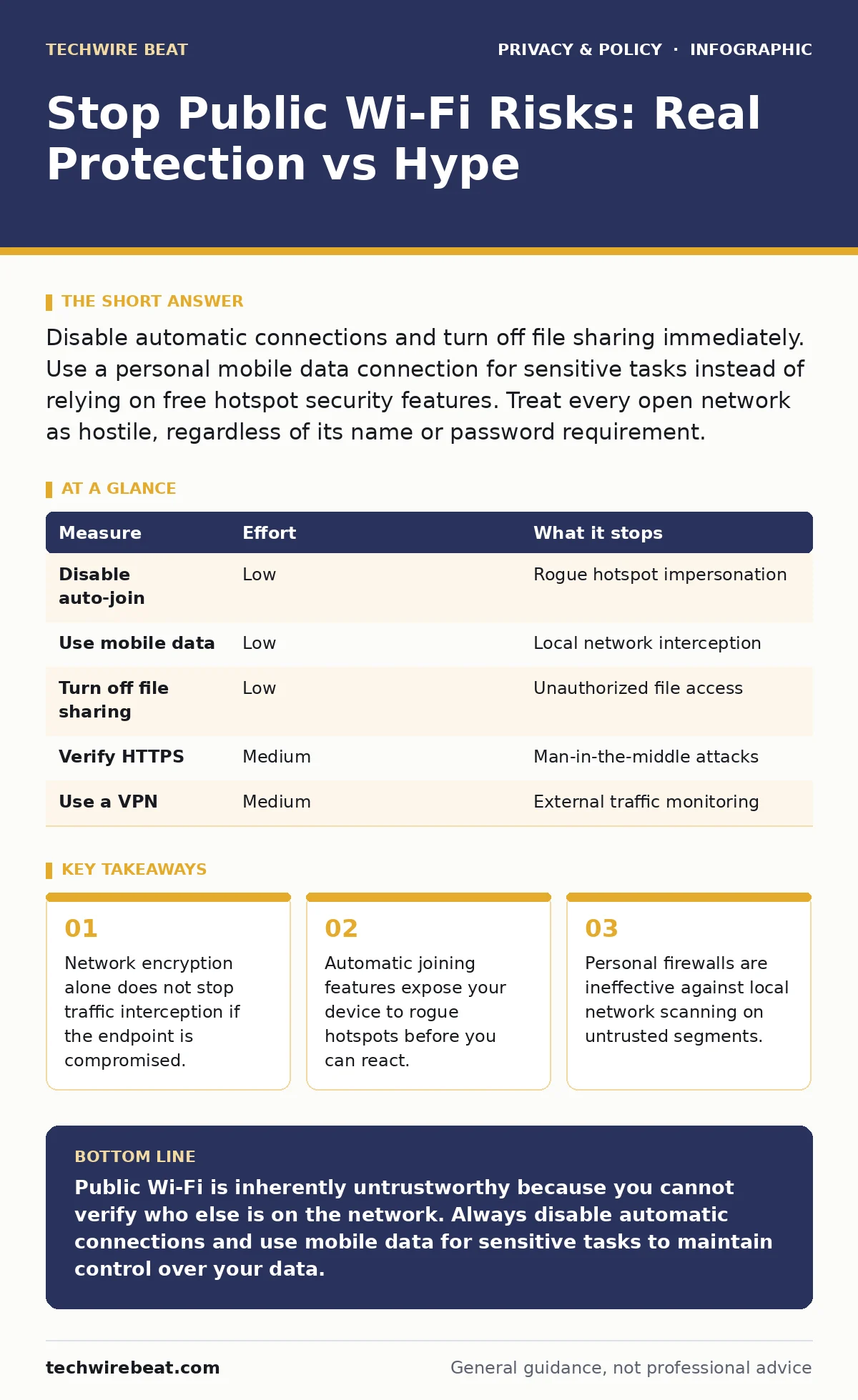
Disable automatic connections and turn off file sharing immediately. Use a personal mobile data connection for sensitive tasks instead of relying on free hotspot security features. Treat every open network as hostile, regardless of its name or password requirement.
The Illusion of Public Network Safety
Imagine you are in a busy airport terminal. You connect to the free Wi-Fi to check your bank balance. The connection appears secure, yet every packet you send passes through the provider’s equipment and potentially the devices of people sitting nearby. Public Wi-Fi networks are designed for convenience, not confidentiality. They typically lack the identity verification and encrypted tunnels that private networks use to keep data separate.
The primary risk is not that someone hacks the router. The risk is that other devices on the same local network can see your traffic if it is not encrypted end-to-end. Even if the network uses a password, that password is often shared publicly or changed infrequently, allowing attackers to join and monitor traffic. You must assume that anyone on the same Wi-Fi segment can attempt to intercept your data.
Disable Automatic Connections
Your device likely remembers networks it has joined before. This feature is convenient at home but dangerous in public spaces. Suppose you previously connected to a network named "Free_WiFi" at a cafe. Later, an attacker sets up a rogue hotspot with the same name near a train station. Your device will connect automatically, assuming it is the legitimate network.
To prevent this, you must disable the setting that allows your device to join known networks automatically. On most operating systems, this is a toggle switch within the Wi-Fi settings menu. When you turn this off, your device will only connect when you explicitly select a network and confirm the action. This small change removes the element of surprise, giving you time to verify the network name and legitimacy before handing over your connection.
| Measure | Effort | What it stops |
|---|---|---|
| Disable auto-join | Low | Rogue hotspot impersonation |
| Use mobile data | Low | Local network interception |
| Turn off file sharing | Low | Unauthorized file access |
| Verify HTTPS | Medium | Man-in-the-middle attacks |
| Use a VPN | Medium | External traffic monitoring |
Prefer Mobile Data for Sensitive Tasks
The most effective way to avoid public Wi-Fi risks is to not use public Wi-Fi for sensitive activities. Your mobile data connection uses a secure, encrypted link between your device and the carrier’s network. Unlike public Wi-Fi, this link is not shared with strangers in your immediate physical vicinity.
When you need to send an email, access a banking portal, or submit personal details, switch to your mobile data plan. This does not require any technical configuration. It simply requires discipline. If your mobile data is unavailable or too slow, wait until you are on a trusted private network. The convenience of free Wi-Fi is rarely worth the potential exposure of your credentials or personal information.
Turn Off File and Printer Sharing
Most operating systems have a feature that allows devices on the same network to share files, printers, or media libraries. This is useful in a home or office environment where you trust the other devices. On a public network, this feature opens doors to your device for anyone else connected to the same segment.
An attacker can scan the local network for devices with file sharing enabled. If they find one, they may attempt to access shared folders or exploit vulnerabilities in the sharing service. You should set your network connection type to "Public" or "Guest" whenever you are away from home. This setting typically disables file and printer sharing automatically. If your operating system does not have this distinction, manually disable sharing in your network settings before connecting to any untrusted network.
Verify End-to-End Encryption
Not all traffic on the internet is equal. Some websites use HTTPS, which encrypts the data between your browser and the server. Other sites use plain HTTP, which sends data in readable text. On a public network, anyone monitoring the traffic can read HTTP data, including login credentials and messages.
You should check for the padlock icon in your browser’s address bar before entering any information. If the site does not support HTTPS, do not use it on a public network. Modern browsers often warn you when a site is not secure, but you should not ignore these warnings. Some applications, like email clients or older messaging apps, may not use encryption by default. Ensure your applications are configured to use encrypted protocols.
See also: Understanding Citrix NetScaler Vulnerabilities: Causes, Risks, and Mitigation Strategies · Network Ports and Protocols: How Data Flows and Where It Leaks
Use a Virtual Private Network
A Virtual Private Network, or VPN, creates an encrypted tunnel between your device and a remote server. This encryption prevents anyone on the local Wi-Fi network from reading your traffic. It also masks your local IP address, making it harder for attackers to target your specific device.
However, a VPN does not protect you from malware or phishing attacks. If you visit a malicious website, the VPN cannot stop the infection. Additionally, the VPN provider can see your traffic. Choose a provider that has a strict no-logging policy and uses strong encryption standards. While a VPN adds a layer of security, it is not a silver bullet. It should be used in combination with other measures, not as the only defence.
What Does Not Work
Many people believe that having a personal firewall or antivirus software is enough to protect them on public Wi-Fi. This is a misconception. Personal firewalls are designed to block incoming connections from the internet, not from devices on the same local network. Antivirus software scans for known malware signatures but does not prevent traffic interception.
Another common myth is that using a private browser window provides security. Private browsing only prevents your device from saving history and cookies. It does not encrypt your traffic or hide your activity from the network provider or other users on the Wi-Fi. Do not rely on these measures for protection on untrusted networks. They provide a false sense of security that can lead to risky behaviour.
Immediate Actions Checklist
You can reduce your risk significantly by taking three simple steps today. These actions require no additional software and take less than a minute to configure.
- Disable the automatic connection to known Wi-Fi networks in your device settings.
- Turn off file and printer sharing when you are on any network that is not your home or office.
- Switch to mobile data for any activity involving passwords, financial details, or personal information.
These steps address the most common attack vectors on public Wi-Fi. They do not require technical expertise and provide immediate protection against casual eavesdropping and rogue hotspots. For more on managing your online safety, see our guide on reducing your digital footprint. Understanding how your data moves across networks is the first step in controlling it.
Key takeaways
- Network encryption alone does not stop traffic interception if the endpoint is compromised.
- Automatic joining features expose your device to rogue hotspots before you can react.
- Personal firewalls are ineffective against local network scanning on untrusted segments.
Public Wi-Fi is inherently untrustworthy because you cannot verify who else is on the network. Always disable automatic connections and use mobile data for sensitive tasks to maintain control over your data.
Frequently asked questions
Is a password-protected public Wi-Fi network safe?
No, a shared password does not prevent attackers from joining the network and intercepting unencrypted traffic.
Do I need a VPN for every public Wi-Fi connection?
It is recommended for sensitive tasks, but disabling auto-join and using mobile data are more effective first steps.
Can someone steal my files just by being on the same Wi-Fi?
Only if you have file sharing enabled and your firewall is configured to allow local network access.
Does private browsing protect me on public Wi-Fi?
No, private browsing only hides your activity from your device, not from the network or other users.
How this guide was produced: written by the TechWire Beat editorial team with AI assistance, checked against the public references listed below, and reviewed when the facts change. See our editorial policy or report an error.