How macOS Security Settings Actually Protect Your Data
Default settings leave hidden entry points open, requiring manual configuration to stop silent data exfiltration and unauthorized access attempts.

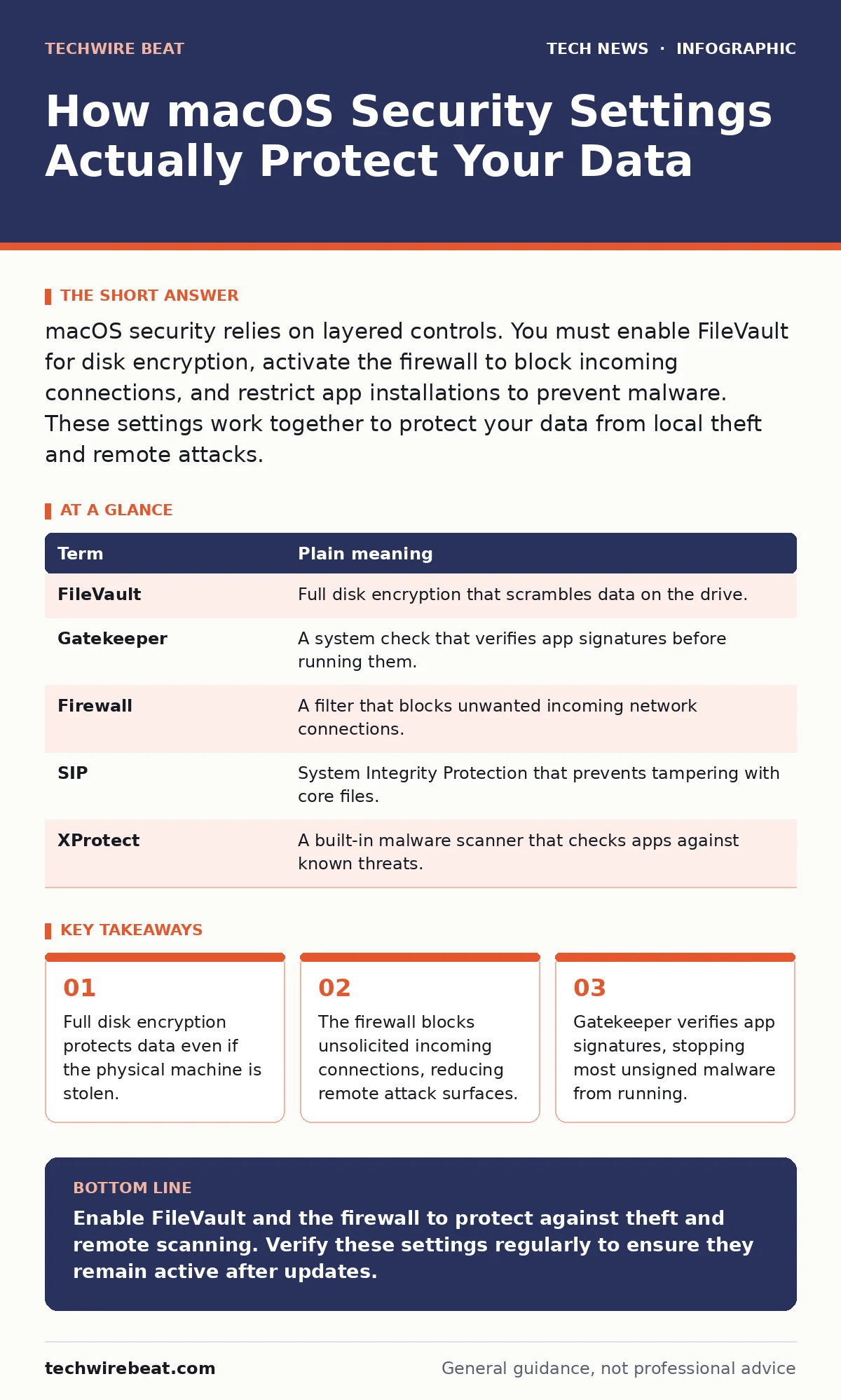
macOS security relies on layered controls. You must enable FileVault for disk encryption, activate the firewall to block incoming connections, and restrict app installations to prevent malware. These settings work together to protect your data from local theft and remote attacks.
The Digital Office Analogy
Imagine your Mac is not a computer, but a private office. The hardware is the building structure. The operating system is the office manager. Security settings are the locks, guards, and policies that decide who enters and what they can touch. Without these controls, anyone can walk in, read your files, or install a camera. With them, you control every interaction. This analogy helps you understand why multiple settings are necessary. Each setting covers a different vulnerability that the others miss.
Core Protection Mechanisms
MacOS uses several layers to protect your system. One layer focuses on the data stored on the drive. Another focuses on network traffic entering or leaving the machine. A third focuses on the software you allow to run. These layers are independent. If one fails, the others may still hold. Understanding how they interact is key to securing your device effectively. You must configure each layer to match your risk profile.
| Term | Plain meaning |
|---|---|
| FileVault | Full disk encryption that scrambles data on the drive. |
| Gatekeeper | A system check that verifies app signatures before running them. |
| Firewall | A filter that blocks unwanted incoming network connections. |
| SIP | System Integrity Protection that prevents tampering with core files. |
| XProtect | A built-in malware scanner that checks apps against known threats. |
Encrypting the Storage Medium
FileVault is the first line of defence for your data. It encrypts the entire contents of your startup disk. If someone steals your laptop, they cannot read your files without your password. The encryption happens in real time, so you do not notice a slowdown. However, this protection only works if you enable it. By default, some configurations may leave this off. You should verify this setting immediately. Remember, encryption protects data at rest, not data in use.
Controlling Software Execution
Gatekeeper acts as the bouncer at the door of your office. It checks every application you download to see if it is signed by a developer. If the signature is missing or invalid, Gatekeeper blocks the app. This stops most casual malware from installing itself. You can adjust this setting to allow apps from anywhere, but this increases your risk significantly. Only do this if you are installing open-source software from trusted sources. Otherwise, keep the default restrictions in place.
Managing Network Access
The firewall controls incoming connections to your Mac. It blocks attempts to connect to services running on your computer. This is particularly important if you use bring your own device policies at work. You might connect to public Wi-Fi, where attackers scan for open ports. The firewall ensures your machine does not respond to these scans. It does not protect you from websites you visit. For that, you need to understand DNS security and how queries are resolved.
System Integrity and Updates
System Integrity Protection, or SIP, locks down critical system files. Even if an attacker gains admin access, they cannot modify these files. This prevents rootkits from hiding in the operating system. You cannot turn off SIP easily, and you should not try. It is a silent guardian that works in the background. Regular software updates also patch vulnerabilities that SIP cannot prevent. Always install updates promptly to close known security holes.
Practical Configuration Steps
You can improve your security posture with three simple actions. These steps do not require technical expertise. They address the most common vulnerabilities.
- Enable FileVault in System Settings under Privacy and Security.
- Turn on the Local Network firewall to block direct connections.
- Keep Gatekeeper restrictions active to block unsigned apps.
These steps create a strong baseline. They do not make you immune to all threats. Social engineering can still bypass technical controls. You must remain aware of phishing attempts and suspicious links. Security is a process, not a product.
Beyond Basic Settings
Advanced users should consider Certificate Transparency logs. These logs help verify that SSL certificates are valid. This adds a layer of trust to your web connections. For those interested in future-proofing, post-quantum cryptography is emerging. It addresses threats from quantum computers. While not immediately critical, understanding these trends helps you plan. Smart home security also impacts your Mac if devices share the same network. Isolate IoT devices to reduce risk.
Key takeaways
- Full disk encryption protects data even if the physical machine is stolen.
- The firewall blocks unsolicited incoming connections, reducing remote attack surfaces.
- Gatekeeper verifies app signatures, stopping most unsigned malware from running.
Enable FileVault and the firewall to protect against theft and remote scanning. Verify these settings regularly to ensure they remain active after updates.
Frequently asked questions
Does macOS need antivirus software?
Built-in tools like XProtect handle many threats, but dedicated antivirus adds another layer for complex malware.
Can I disable the firewall for gaming?
You can allow specific apps through the firewall, but disabling it entirely exposes your system to network scans.
What if I forget my FileVault password?
You must use your recovery key. If lost, data is unrecoverable, and you must reinstall the system.
How often should I check these settings?
Review them after major system updates, as some updates may reset configurations to defaults.
How this guide was produced: written by the TechWire Beat editorial team with AI assistance, checked against the public references listed below, and reviewed when the facts change. See our editorial policy or report an error.