How to Stop Drive-By Downloads: Real Prevention Tactics
Blocking the browser is not enough; you must restrict what code is allowed to execute on your system to stop silent infections.

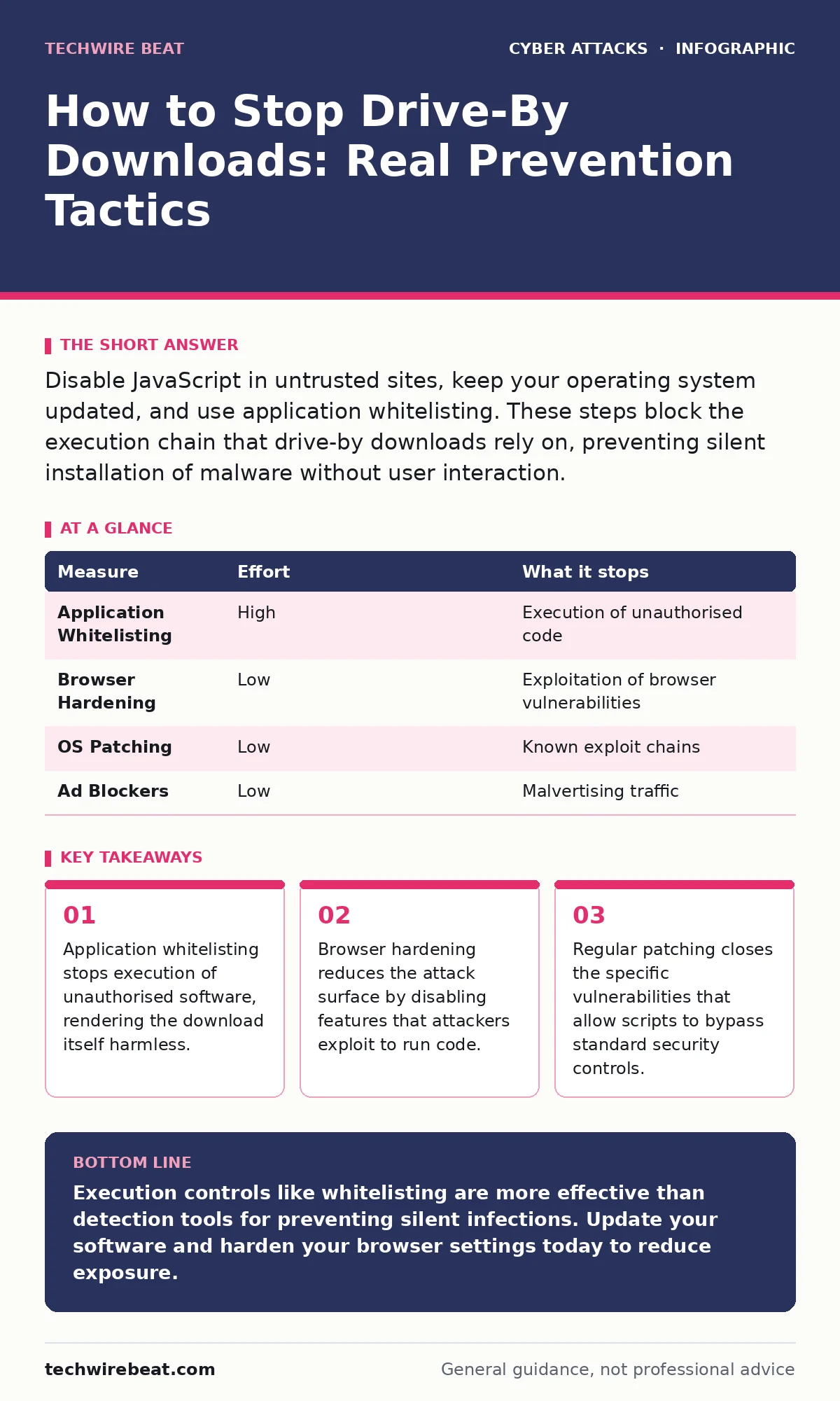
Disable JavaScript in untrusted sites, keep your operating system updated, and use application whitelisting. These steps block the execution chain that drive-by downloads rely on, preventing silent installation of malware without user interaction.
The Silent Execution Chain
Drive-by downloads differ from traditional malware because they require no user action. You do not click a suspicious link or open an attachment. The attack happens automatically when your browser loads a compromised website. The malicious code exploits a vulnerability in your browser or a plugin to execute commands on your machine. This process is silent and immediate.
The term "drive-by" refers to the casual nature of the infection. Like being splashed by a passing car, you are infected simply by being present. The attacker does not need to trick you. They only need you to visit a site that has been compromised, even if the site is legitimate and trustworthy. The infection occurs in the background while you browse normally.
The Limitation of Perimeter Defences
Many users believe that a firewall or antivirus software is sufficient protection. This is a common misconception. Firewalls control network traffic, but drive-by downloads often use standard web ports. The traffic looks like normal browsing activity. Antivirus software scans for known malware signatures, but many drive-by attacks use fileless techniques or novel code that has no signature yet.
Relying solely on these tools leaves a significant gap. The malware executes before the antivirus can scan it. By the time the signature is identified, the damage may already be done. You need controls that prevent execution, not just detection. This shifts the focus from catching the virus to stopping the program from running at all.
Application Whitelisting as the Primary Control
The most effective measure is application whitelisting. This security model allows only approved applications to run. Everything else is blocked by default. If a drive-by download manages to place a file on your disk, the operating system will refuse to execute it. This breaks the chain of infection at the final step.
Implementing this requires initial configuration. You must define which applications are trusted. This can be challenging in environments with many legitimate tools. However, the security benefit is substantial. It renders the payload useless, regardless of how sophisticated the delivery method is. This approach aligns with the principles of zero trust security, where no process is trusted by default.
| Measure | Effort | What it stops |
|---|---|---|
| Application Whitelisting | High | Execution of unauthorised code |
| Browser Hardening | Low | Exploitation of browser vulnerabilities |
| OS Patching | Low | Known exploit chains |
| Ad Blockers | Low | Malvertising traffic |
Browser Hardening and Script Control
Your browser is the primary entry point. Hardening your browser settings reduces the attack surface. One effective step is to disable JavaScript for sites you do not trust. JavaScript is the language most commonly used to deliver drive-by payloads. While this may break some website functionality, it stops the malicious code from running.
You can use browser extensions to manage JavaScript permissions selectively. This allows you to enable scripts on trusted sites while blocking them elsewhere. This granular control provides a balance between usability and security. It prevents the automatic execution of malicious scripts that attempt to exploit browser flaws.
The Critical Role of Patching
Vulnerabilities in operating systems and browsers are the doors attackers use. When a new vulnerability is discovered, vendors release patches to close it. Attackers often target unpatched systems because the exploits are known and reliable. Keeping your software up to date is not optional; it is a fundamental requirement.
Delayed patching leaves you exposed to known exploits. Some organisations delay patches due to compatibility concerns. This creates a window of vulnerability. You must balance stability with security. Regular testing of updates in a controlled environment can mitigate compatibility risks while ensuring timely protection.
See also: CORS Misconfiguration Recovery: Immediate Response and Remediation Steps
Managing the Ad Network Risk
Many drive-by downloads originate from malicious advertisements, known as malvertising. Legitimate advertising networks can be compromised, leading to malicious ads appearing on reputable sites. You cannot always verify the safety of every third-party script or ad network.
Using ad blockers reduces this risk by preventing the loading of external advertising content. This stops the malicious code from reaching your browser in the first place. It is a proactive measure that limits exposure to compromised ad networks. While not a complete solution, it significantly reduces the volume of potential threats.
What Does Not Work
Standard user training is often promoted as a solution. However, drive-by downloads do not rely on user error. No amount of security awareness training can stop an attack that requires no interaction. You cannot train users to avoid clicking nothing.
Similarly, relying on pop-up blockers is insufficient. Modern attacks do not use pop-ups. They execute within the main browser window. These measures address older, less sophisticated threats. They provide a false sense of security against modern, automated attack chains.
A Practical Checklist for Today
You can implement several measures immediately. Start by updating your browser and operating system. Then, install an ad blocker and configure it to block all third-party content. Finally, review your browser settings and disable JavaScript for sites you do not actively use.
These steps provide a layered defence. They address different stages of the attack chain. While no single measure is perfect, combining them significantly reduces your risk. Regular review of these settings ensures they remain effective as threats evolve.
- Update operating system and browser to the latest version
- Install and configure a reputable ad blocker
- Disable JavaScript for untrusted websites
Key takeaways
- Application whitelisting stops execution of unauthorised software, rendering the download itself harmless.
- Browser hardening reduces the attack surface by disabling features that attackers exploit to run code.
- Regular patching closes the specific vulnerabilities that allow scripts to bypass standard security controls.
Execution controls like whitelisting are more effective than detection tools for preventing silent infections. Update your software and harden your browser settings today to reduce exposure.
Frequently asked questions
Can a drive-by download happen on my smartphone?
Yes, mobile browsers are also vulnerable to drive-by downloads. Attackers exploit vulnerabilities in mobile operating systems and apps. Keep your mobile OS and apps updated to mitigate this risk.
Does using a different browser help?
Using a different browser may change the attack surface, but it does not eliminate the risk. All browsers have vulnerabilities. The key is to keep any browser you use updated and hardened.
Are ad blockers enough to stop all drive-by downloads?
No, ad blockers only stop threats delivered via advertisements. They do not protect against vulnerabilities in the browser itself or other delivery methods. You need additional controls like patching and whitelisting.
How do I know if I have been infected?
Signs include unusual system behaviour, unexpected pop-ups, or high CPU usage. However, many drive-by downloads are designed to be silent. Regular monitoring and execution controls are better than waiting for symptoms.
How this guide was produced: written by the TechWire Beat editorial team with AI assistance, checked against the public references listed below, and reviewed when the facts change. See our editorial policy or report an error.